Back to Blog List

Extreme Series Setup Tutorial: 14 Steps From Strategy Center To Running

Tutorial
C
CoinTech2u
CoinTech2u Community Columnist
Pure walkthrough with a screenshot for every step: open the Strategy Center from the bottom navigation, pick Extreme Series, choose Single or Trio, then work the three-step page — select a portfolio, set the strategy and Extreme level, and select exactly 12 coins (US stock instruments sit under the TradFi tab). Review the Gas Fee on the Review & Confirm page, start, then confirm the Running badge and the Positions tab where every coin holds both a long and a short leg (12 coins = 24 positions). For what each setting actually does, see the full Extreme Series guide.

⚠️ This is the highest-risk strategy line on the platform

Extreme Series has no per-trade stop loss. It makes money from trends and gets ground down in a flat market. This page only covers how to operate it. For what each setting actually does, how to choose between the three strategies, and the worked examples behind Profit Goal and Rebound Stop, read the full Extreme Series guide first.

1

Open Extreme Series

Step 1: Tap the middle button

The shortcut ring expands — tap Strategy Center on the left.
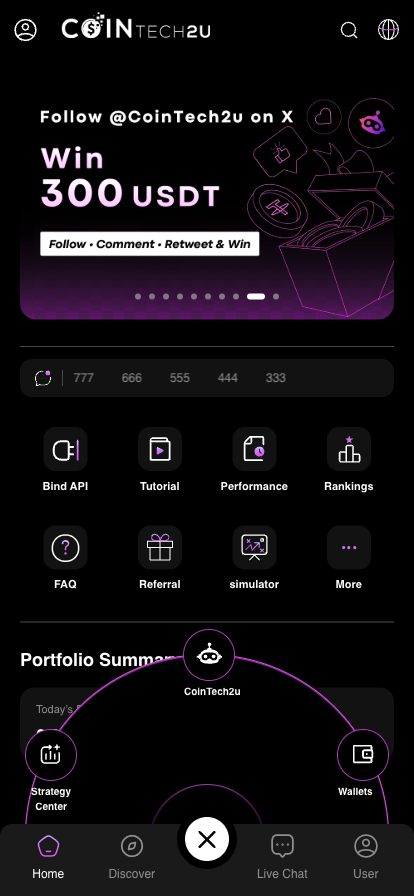
Opening the Strategy Center from the bottom navigation

Step 2: Tap Extreme Series

It is the starred line at the top of the list.
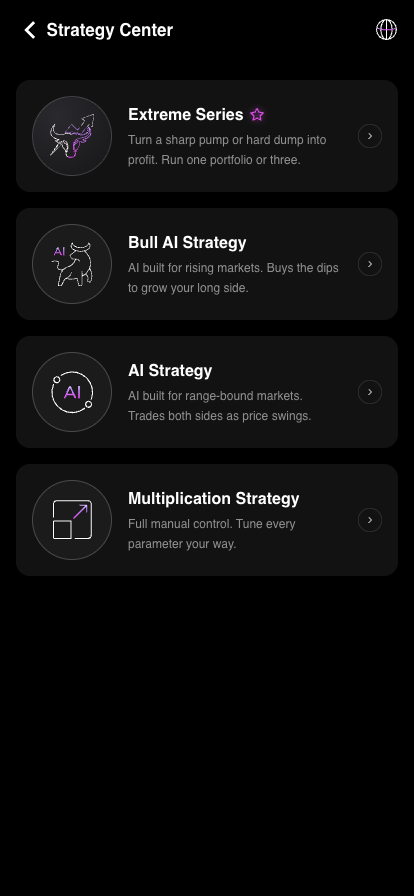
Extreme Series in the Strategy Center

Step 3: Read it, then Set Up Now

Worth reading the whole page before you continue.
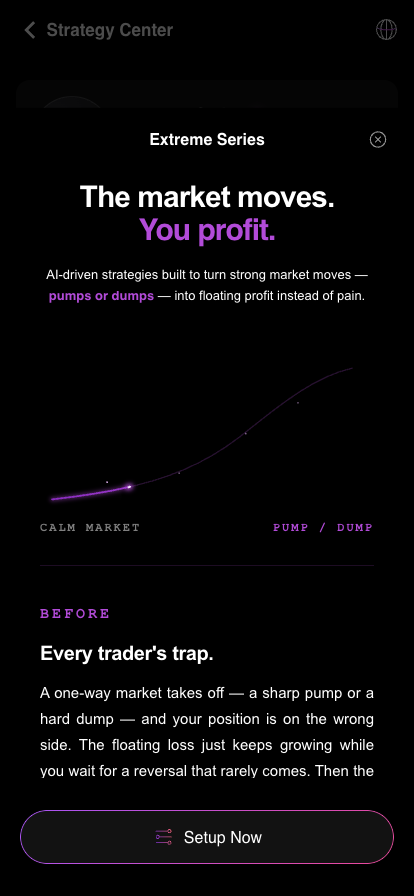
Extreme Series intro page
2

Choose a portfolio

Step 4: Pick a setup mode

Extreme Single runs one portfolio, Extreme Trio links three. Start with Single.
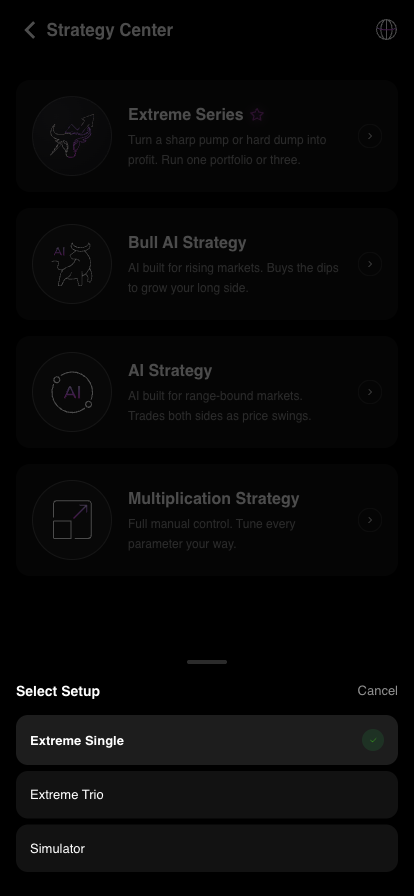
Choosing Extreme Single or Extreme Trio

Step 5: Only three steps

Portfolio, strategy, coins. Leverage and ladder sizing are calculated for you.
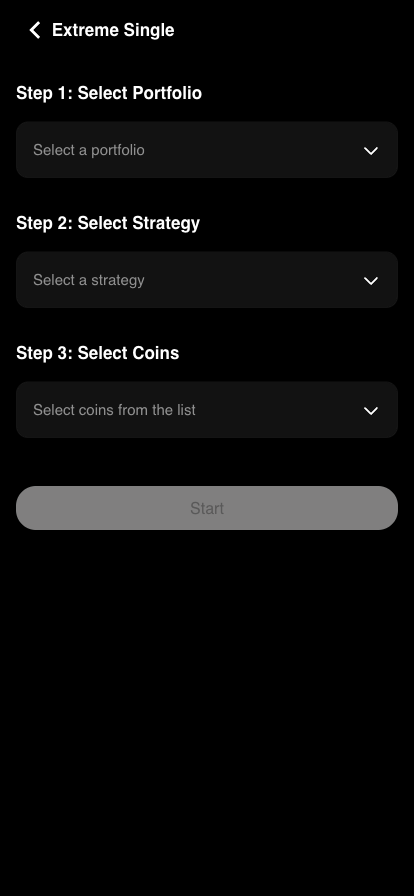
The three steps on the Extreme setup page

Step 6: Open the portfolio list

Each row shows Equity and Balance — the capital tier is matched on Equity.
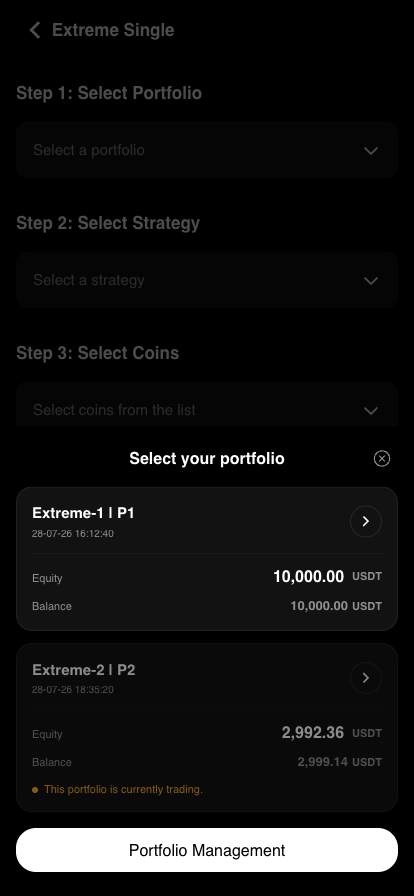
Portfolio list showing Equity and Balance, with a portfolio that is already trading

Step 7: Pick an idle one

Anything marked currently trading is greyed out. Step 1 then shows the starting capital.
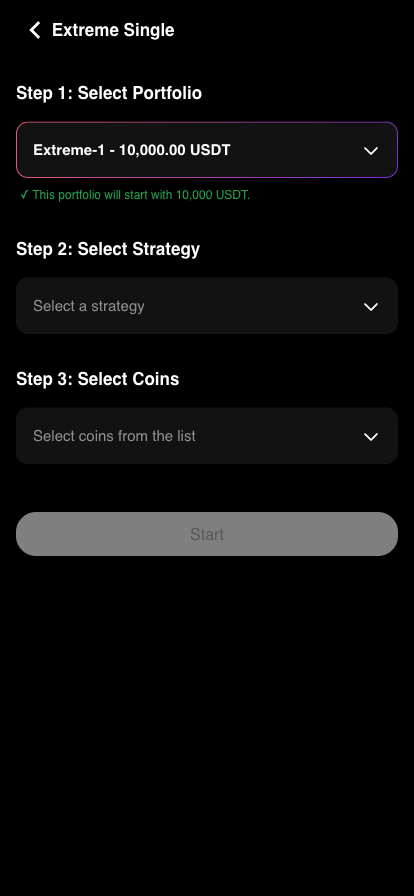
An idle portfolio selected, showing the starting capital
3

Set strategy and coins

Step 8: Strategy and level

Strategy type, Extreme level, Profit Goal and Equity Guard all live on this panel. The red note recalculates the equity figure live. Which one should I pick?
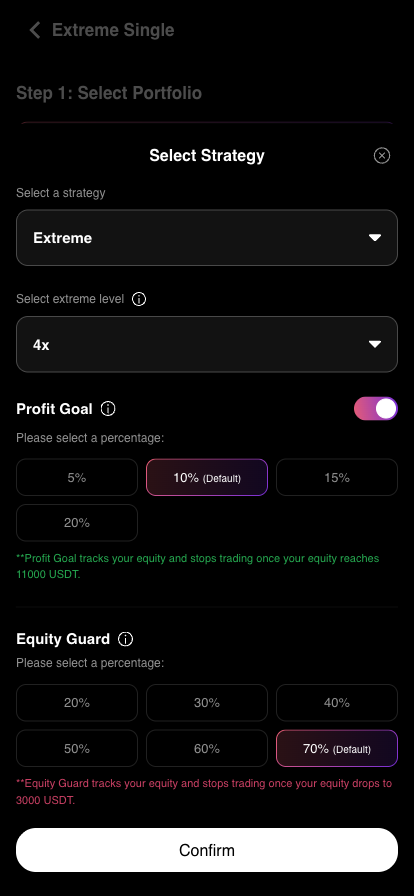
Select Strategy panel: type, Extreme level, Profit Goal, Equity Guard

Step 9: Select coins

US stock instruments sit under the TradFi tab. Leaving “Exclude coins activated in other portfolios” ticked is recommended.
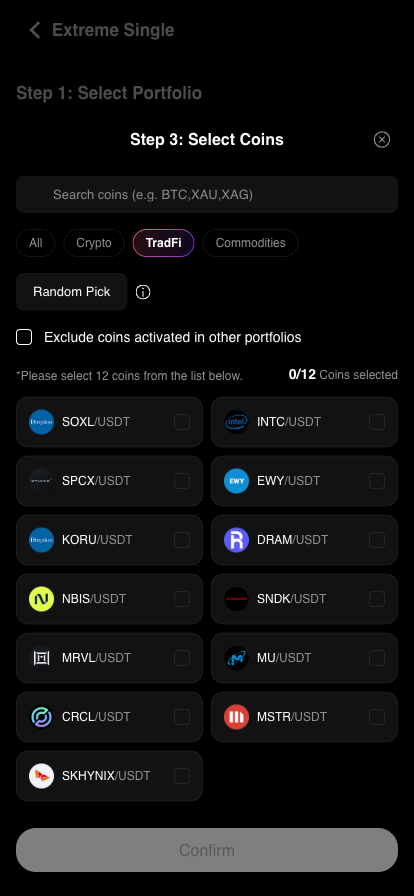
Select Coins panel with the All, Crypto, TradFi and Commodities tabs

Step 10: Exactly 12 coins

Confirm only lights up at 12. Random Pick fills them in one tap.
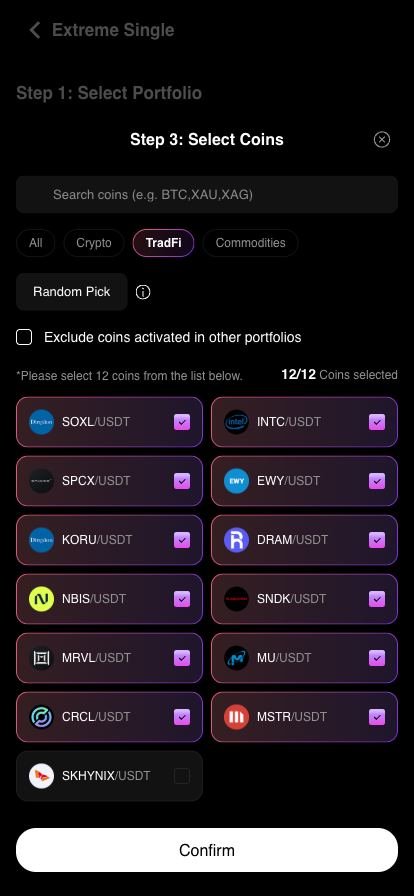
Confirm button active once 12 coins are selected

Step 11: All three steps filled

The bottom button switches from a greyed-out Start to an active Confirm.
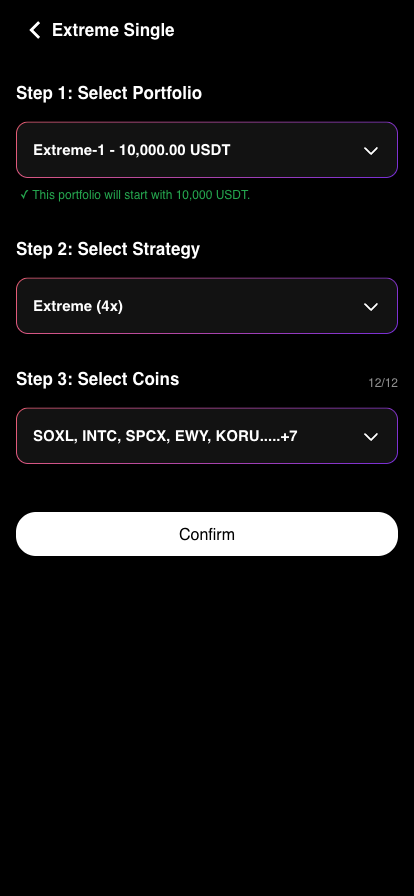
All three steps filled and the Confirm button active
4

Review and start

Step 12: Check, then Start

Verify total capital, the 12 coins and both guard amounts; scroll down for Fee Details. How is the fee charged?
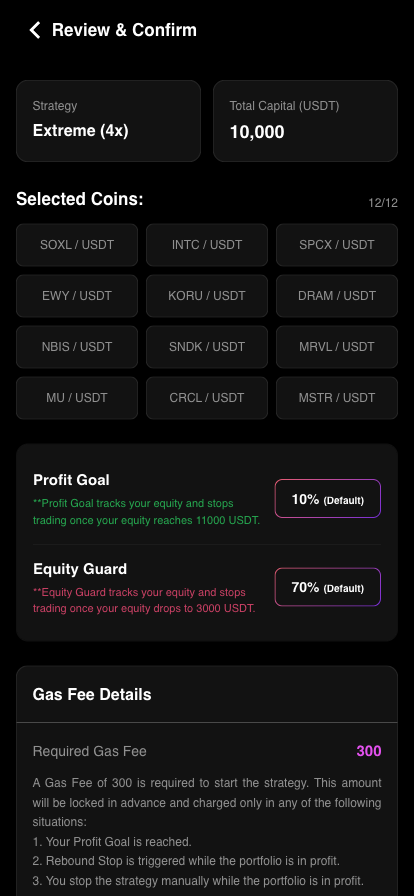
Review and Confirm page: strategy, total capital, coins, Profit Goal and Equity Guard

Step 13: The Running badge

On the scale, the left end is Equity Guard, the middle is Starting Capital and the right end is Profit Goal.
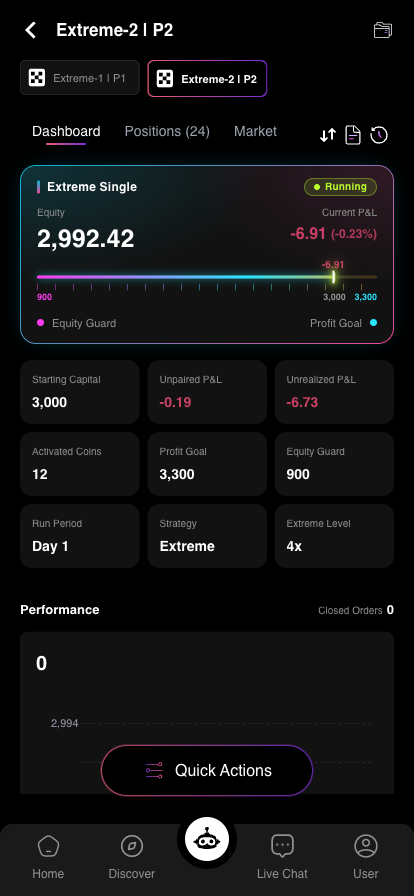
Portfolio page after starting, showing the Running badge and the equity scale

Step 14: Long and short per coin

12 coins = 24 positions. That is the mechanism, not a duplicate order.
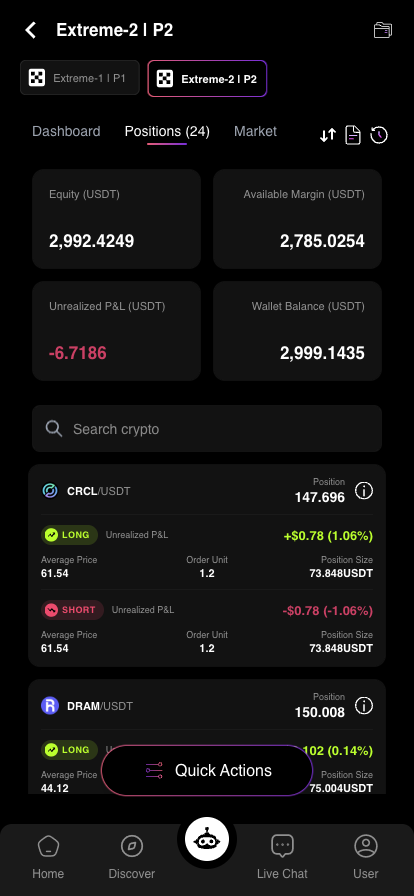
Positions tab: a long and a short leg for each coin, 24 in total

FAQ

Why exactly 12 coins?

The capital tier is split across 12 coins, so Confirm stays disabled until you have 12. Random Pick fills them for you.

Why two positions per coin?

By design: the trend-side leg is left to run while the losing side is laddered. 12 coins therefore show 24 positions.

Is the locked Gas Fee charged immediately?

No — it is locked, not spent. 30% of profit is charged only if the run ends in profit; a losing run releases the full amount.

Want to know what each setting does?

This page is operation only. How to choose between the three strategies, what the Extreme level changes, the worked examples for Profit Goal and Rebound Stop, the fee rules and the risks are all in the full guide.

Start with money you can afford to see swing

Extreme Series has no per-trade stop loss. Begin with Single + 1× level + the lowest capital tier, and always set Equity Guard.

Want to verify these claims?

CoinTech2u's live performance is archived daily and publicly verifiable — no cherry-picked windows, no deleted losses. Check the data first, then decide whether to let AI run disciplined trades for you.

Share this article:

Related Articles

Tutorial
Extreme Series Explained: Three Strategies, Profit Goal / Rebound Stop / Equity Guard (2026)

Extreme Series is the highest-risk product line on CoinTech2u: it rides trends instead of averaging ...

CoinTech2u Read More →
Tutorial
How to Start AI Trading on CoinTech2u — Quick Setup Guide (OKX)

11-step guide to activate automated AI trading on CoinTech2u using Quick Setup. Configure Equity Gua...

CoinTech2u Read More →
Tutorial
How to Start AI Trading on CoinTech2u — Quick Setup Guide (Bitget)

11-step guide to activate automated AI trading on CoinTech2u with your Bitget account. Configure Equ...

CoinTech2u Read More →
Tutorial
How to Start AI Trading on CoinTech2u — Quick Setup Guide (Bybit)

11-step guide to activate automated AI trading on CoinTech2u with your Bybit account. Configure Equi...

CoinTech2u Read More →
Tutorial
How to Start AI Trading on CoinTech2u — Quick Setup Guide (Binance)

11-step guide to activate automated AI trading on CoinTech2u with your Binance account. Configure Eq...

CoinTech2u Read More →
Strategy & Analysis
The Complete Guide to Copy Trading: 4 Modes, How to Choose Who to Follow, and Its Real Limits

Copy trading (also called social trading) is essentially "borrowing someone else's discipline." This...

CoinTech2u Read More →
Tutorial
OKX Registration Guide with Screenshots: How to Sign Up and Complete KYC (2026 Step-by-Step)

OKX registration flow with screenshots — a visual step-by-step walkthrough to sign up for OKX via ...

CoinTech2u Read More →
Tutorial
How to Convert USDT to Gas Fee in CoinTech2u (via OKX)

17-step guide to deposit USDT from OKX to your CoinTech2u wallet via TRC20 network and convert it to...

CoinTech2u Read More →
Tutorial
Bitget Registration Guide with Screenshots: How to Sign Up and Complete KYC (2026 Step-by-Step + 10% Fee Rebate)

Bitget registration flow with screenshots — a visual step-by-step walkthrough to sign up for Bitge...

CoinTech2u Read More →
Tutorial
How to Transfer Funds to Your Bitget Sub-Account in CoinTech2u

5-step guide to transfer USDT from your Bitget main account Funding Wallet to sub-account Trading Wa...

CoinTech2u Read More →

This article is for educational and informational purposes only and does not constitute investment advice. Investing involves risks, please invest cautiously.

Start Free Trading →