Select Portfolio
Step 1: Open CoinTech2u
Log in to CoinTech2u and navigate to your homepage dashboard.
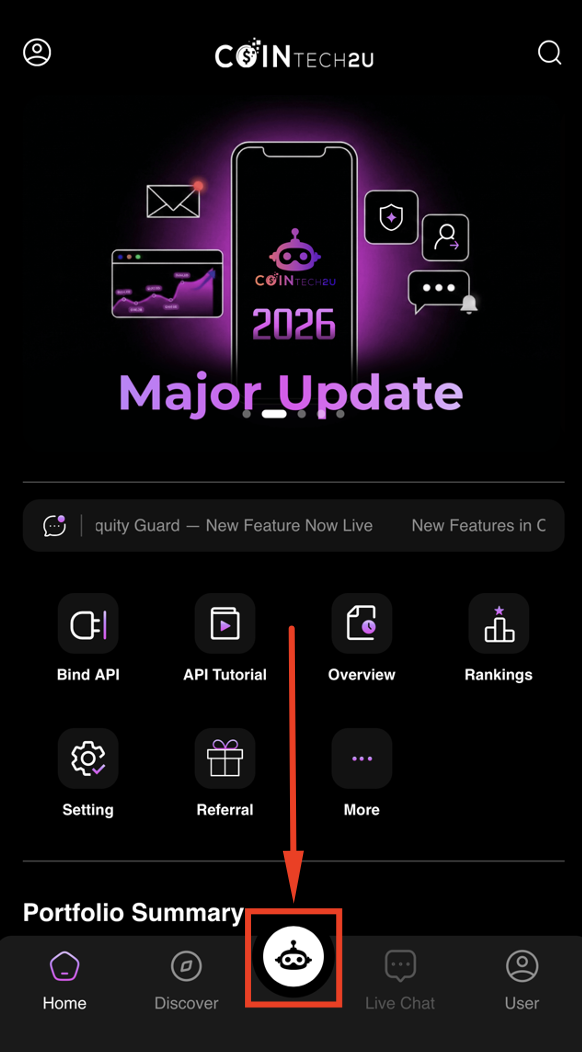
Step 2: Access the Trading Platform
Tap CoinTech2u to access the AI trading platform interface.
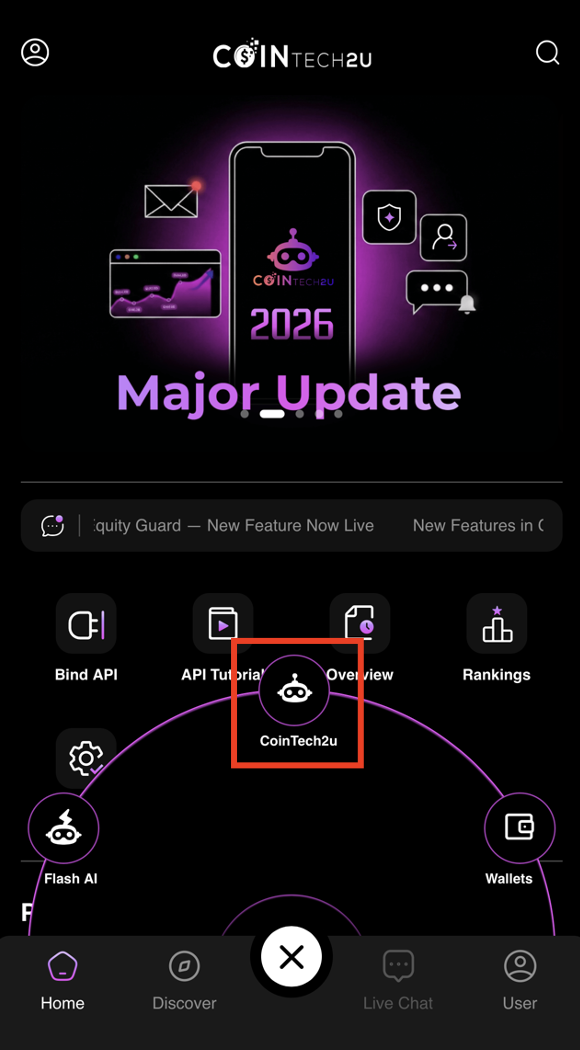
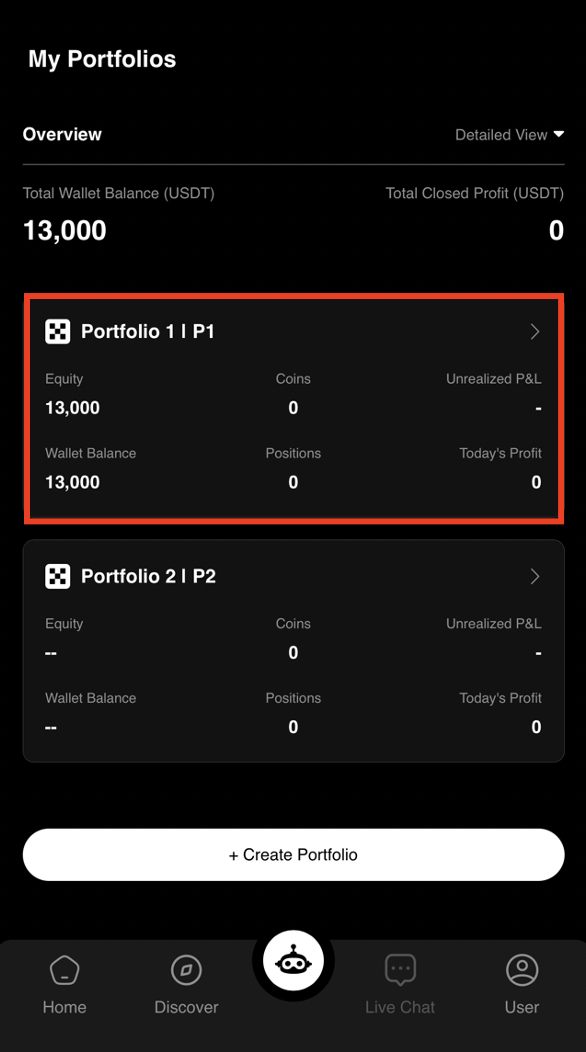
Step 3: Select Your Bitget Portfolio
Tap the Bitget portfolio you want to start trading with. This is the portfolio you previously connected via Fast API.
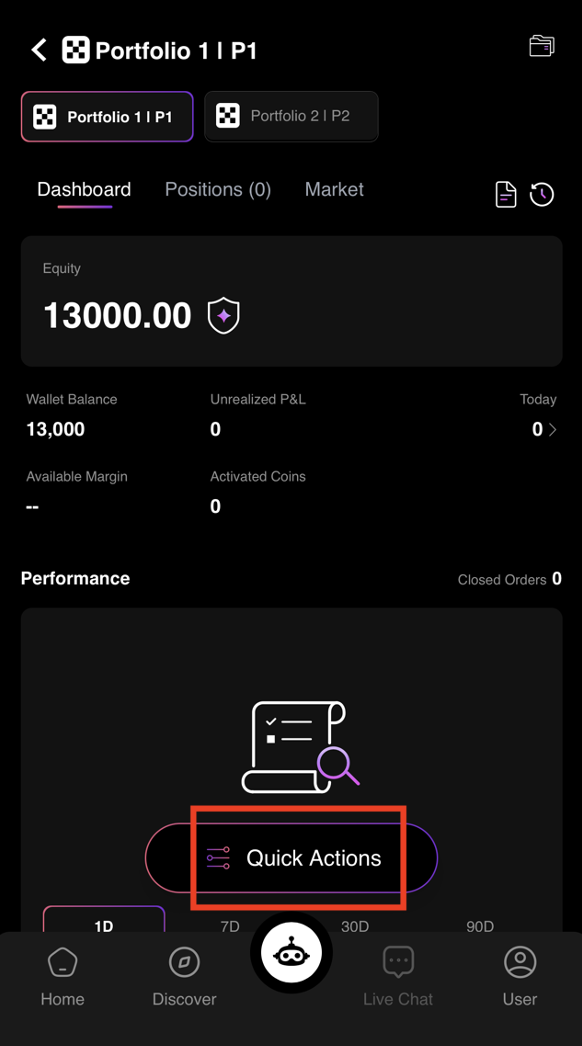
Step 4: Tap "Quick Actions"
Tap Quick Actions to access the quick setup and trading management tools.
Step 5: Tap "Quick Setup"
Tap Quick Setup to begin the AI-guided configuration process. The AI will automatically analyze your wallet balance.
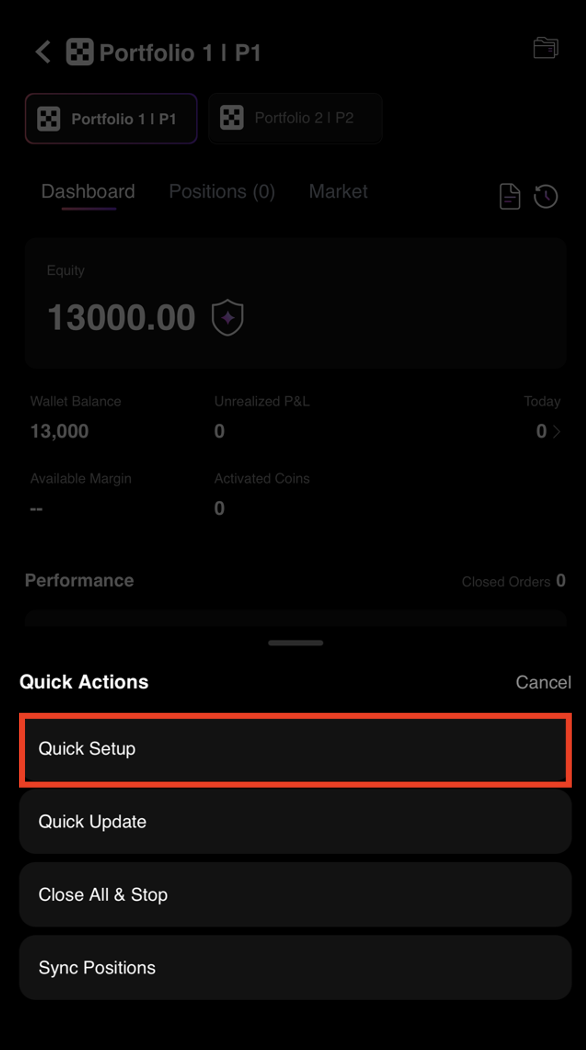
Quick Setup & Equity Guard
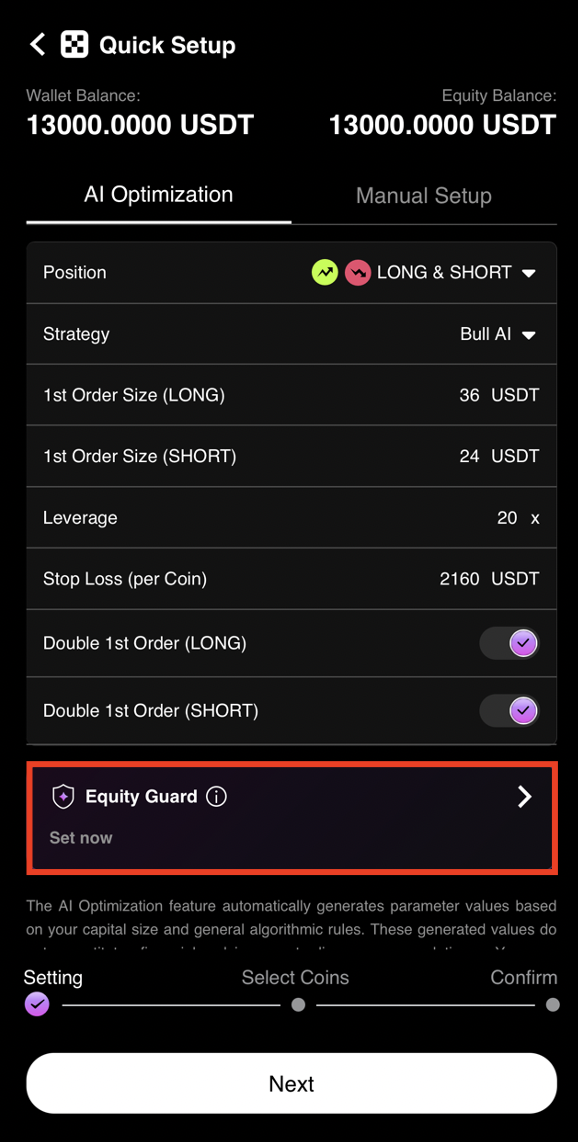
Step 6: Review AI Configuration and Open Equity Guard
The AI will read your wallet balance and automatically generate an optimized configuration. Tap Equity Guard to set your risk protection parameters.
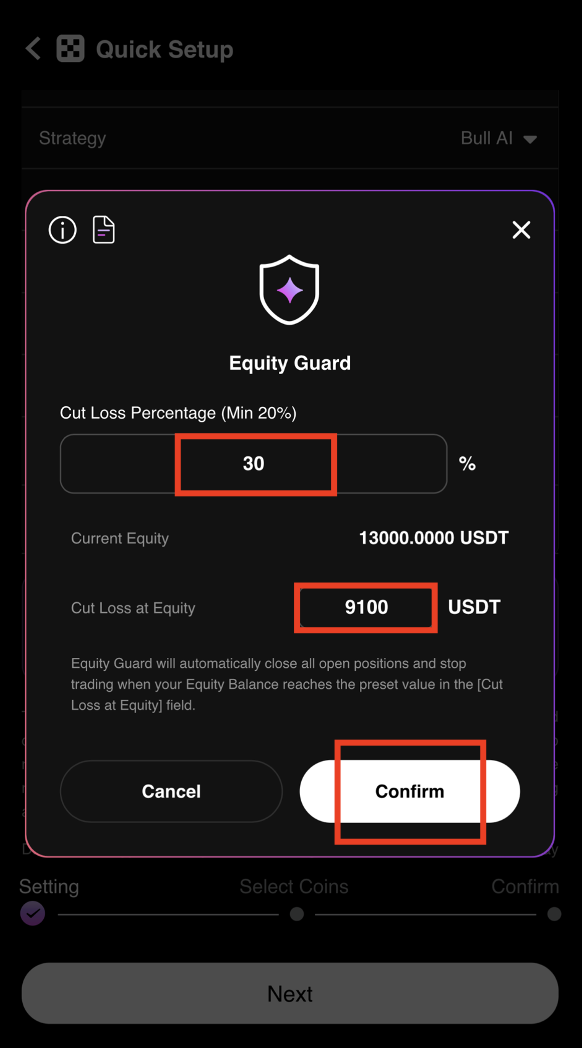
Step 7: Set Your Equity Guard Parameters
Set your Cut Loss Percentage or Cut Loss at Equity based on your individual risk tolerance. If your portfolio equity drops to your preset level, the AI will automatically close all open positions and stop trading immediately.
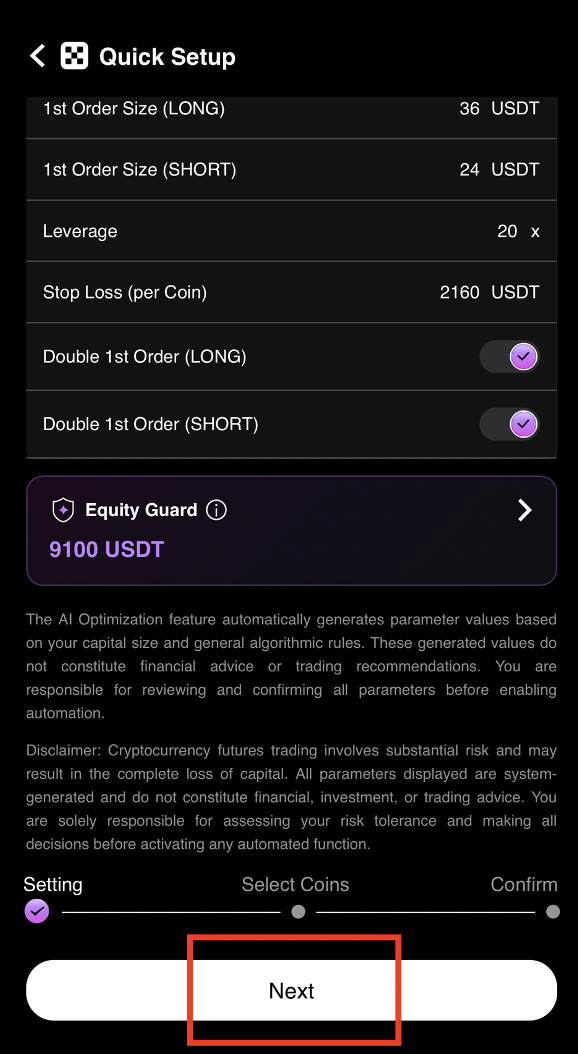
Step 8: Proceed to Coin Selection
After setting your Equity Guard parameters, tap Next to proceed to coin selection.
Start Trading
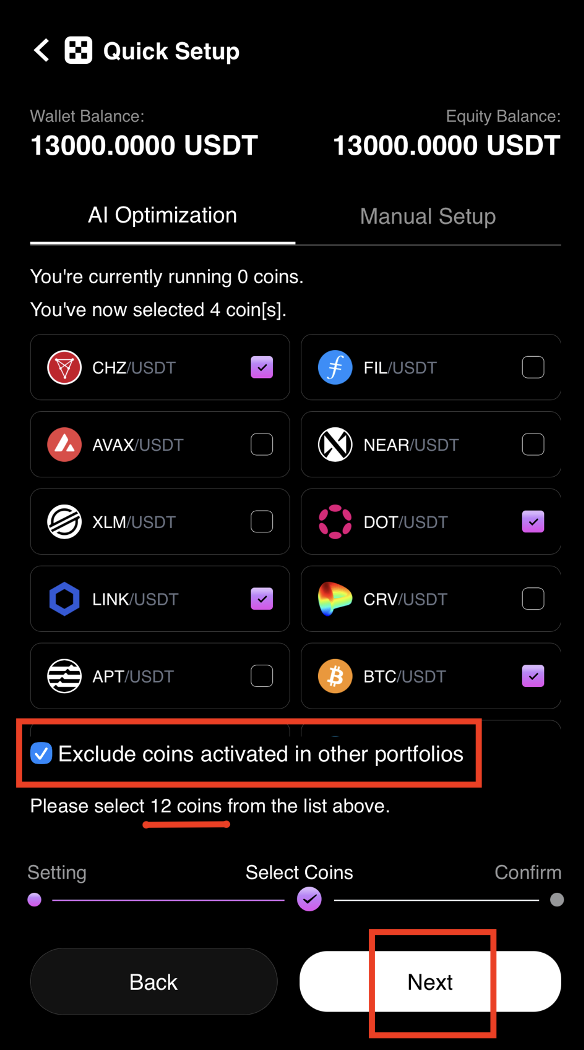
Step 9: Select Trading Coins
Tick "Exclude coins activated in other portfolios" to filter out coins already running in other portfolios within the same exchange. Then select the number of coins based on AI Optimization and tap Next.
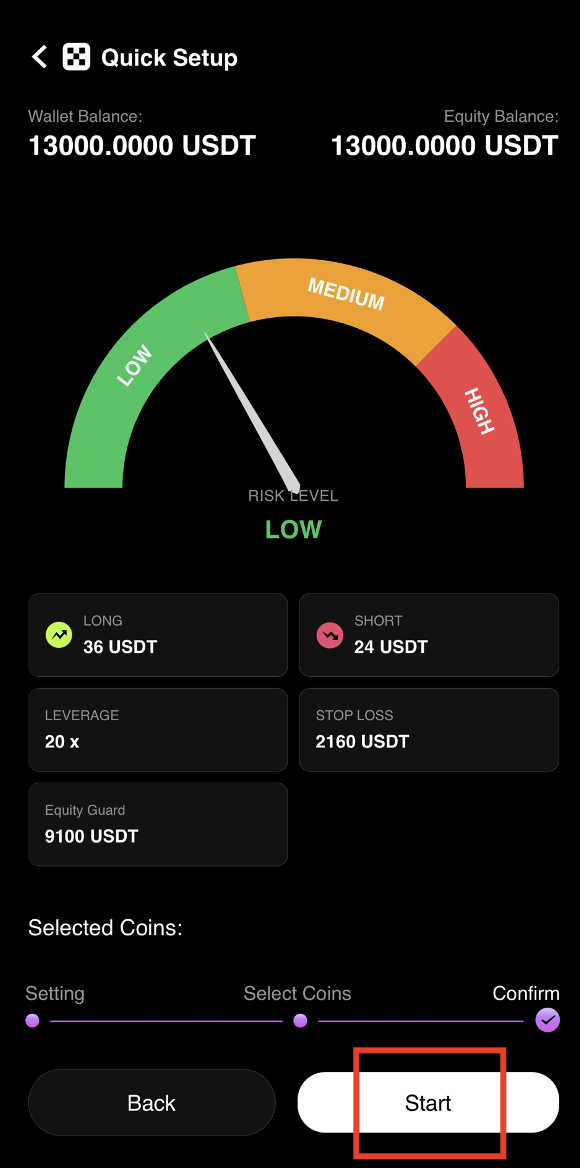
Step 10: Click "Start" to Activate Trading
Review your configuration one final time, then click Start to activate AI trading on your portfolio.
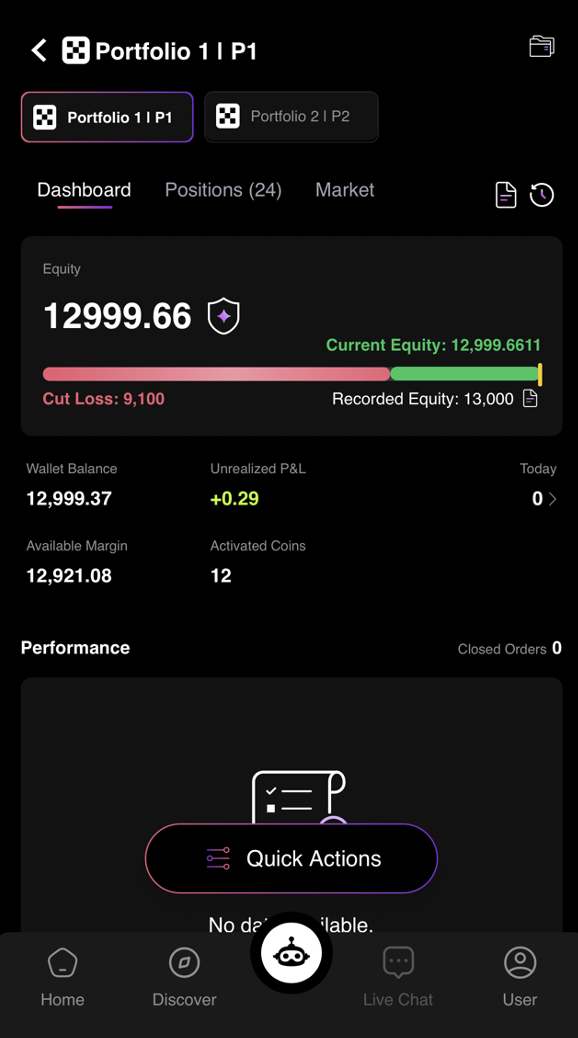
Step 11: AI Trading Successfully Activated
Congratulations! You have successfully activated automated AI trading on CoinTech2u. The AI will now analyze the market and execute trades 24/7 on your Bitget account.
Frequently Asked Questions
What is Equity Guard and how does it protect my portfolio?
Equity Guard is CoinTech2u's built-in risk management feature. You set a maximum drawdown threshold, and if your portfolio equity drops to that level, the AI automatically closes all open positions and stops trading. For example, with 13,000 USDT and a 30% tolerance, trading stops at 9,100 USDT. This effectively eliminates the risk of liquidation.
What is Quick Setup on CoinTech2u?
Quick Setup is CoinTech2u's AI-guided configuration tool that automatically analyzes your wallet balance and generates an optimized trading configuration. It handles portfolio allocation, coin selection, and risk parameters in just a few taps, making it easy for both beginners and experienced traders to get started quickly.
What is the minimum capital required to start AI trading?
We recommend starting with at least 1,000 USDT to diversify across multiple trading pairs. Higher capital allows the AI to trade more coins simultaneously for better risk-adjusted returns. The Quick Setup feature automatically adjusts the configuration based on your available balance to optimize performance.
Can I adjust my risk settings after starting?
Yes, you can adjust your Equity Guard threshold, coin selection, and other risk settings at any time. Go to your portfolio settings to make changes, and the AI will adapt in real time. You can also pause or stop trading entirely and restart whenever you are ready.
Complete Bitget Setup Guide
You have completed the full Bitget setup process. Here is the complete tutorial series for reference:
Start AI Trading Today
Register your Bitget account and let CoinTech2u's AI trade for you 24/7 with built-in risk protection.