Understanding Equity Guard
Equity Guard is your safety net. It automatically closes all positions when your portfolio drops to a set percentage of its starting value.
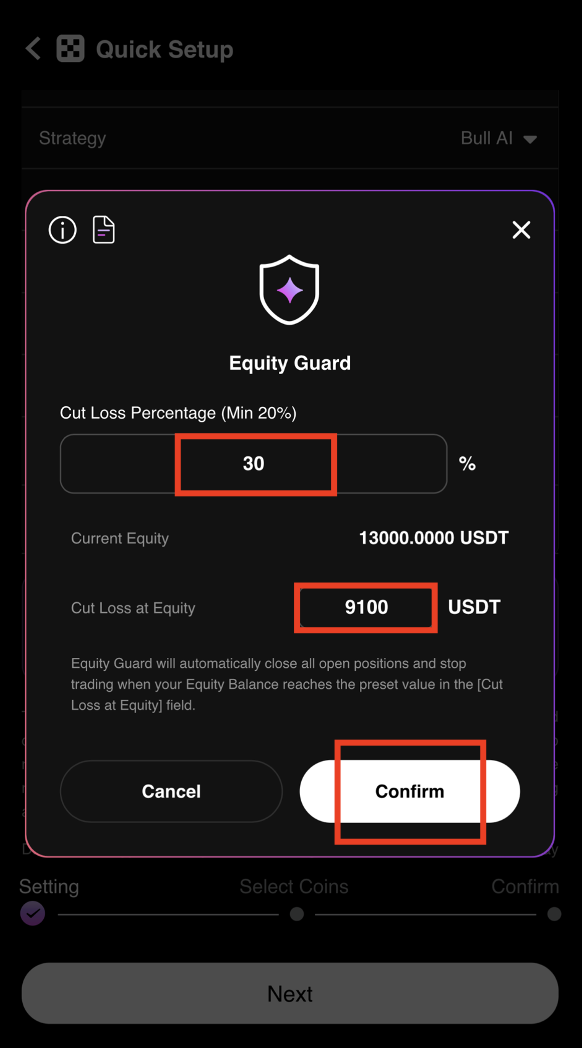
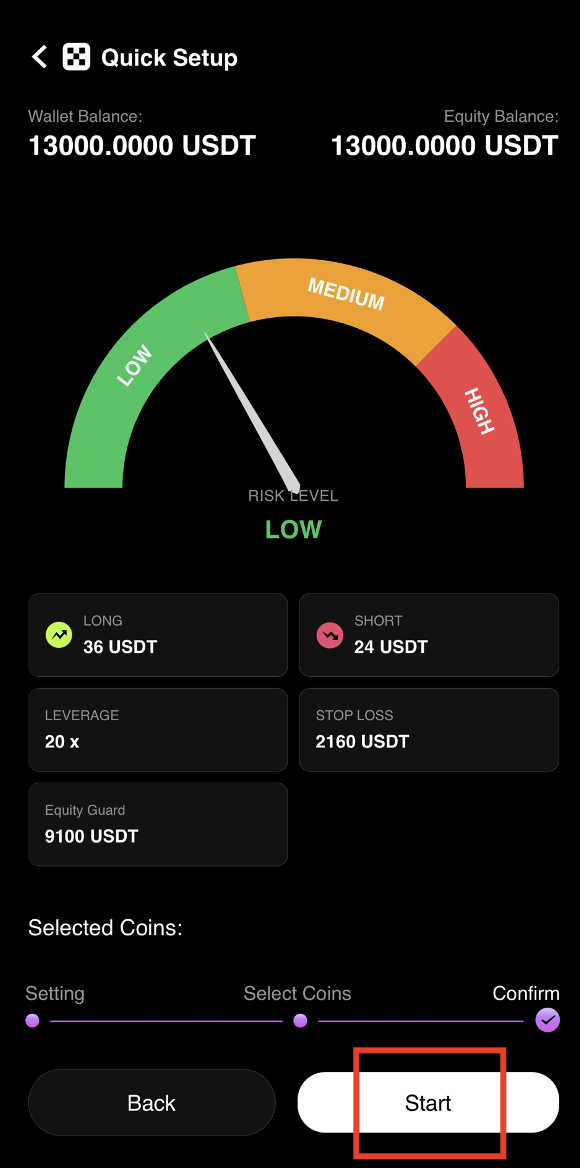
Example: Starting equity of 13,000 USDT with Equity Guard set to 30%
Calculation: 13,000 x 0.70 = 9,100 USDT
If your portfolio value drops to 9,100 USDT, all trades close automatically to protect your remaining capital.
Select Portfolio
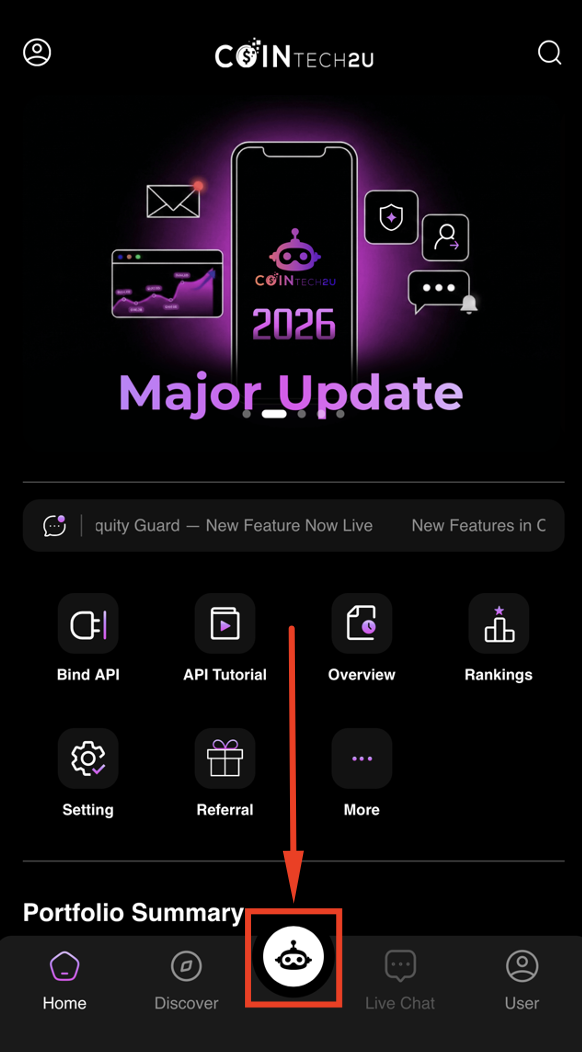
Step 1: Open CoinTech2u
Tap the CoinTech2u logo at the bottom of the screen to access the trading dashboard.
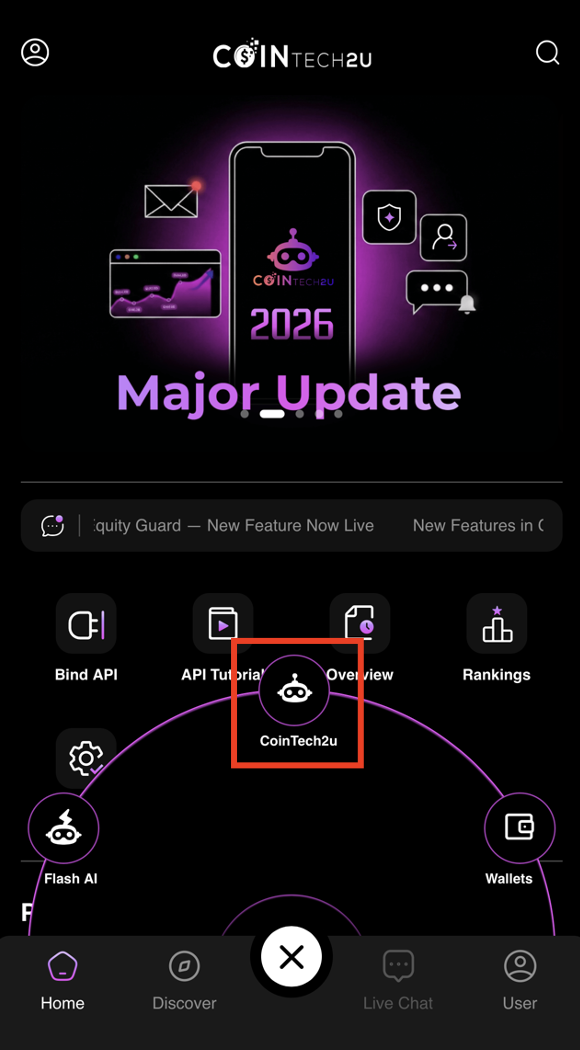
Step 2: Enter the Trading Interface
Tap CoinTech2u to open the main trading interface.
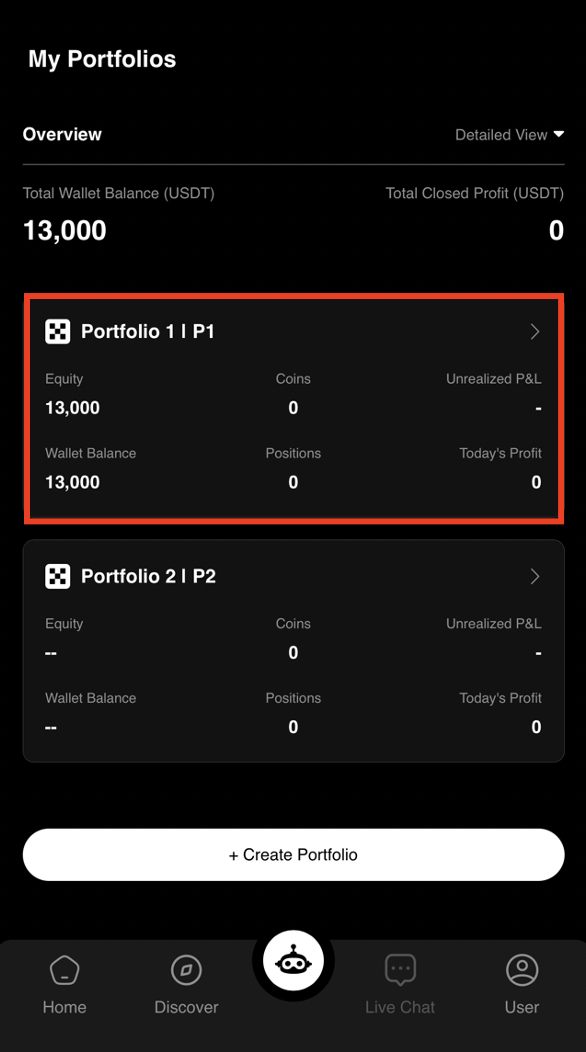
Step 3: Select Your Portfolio
Tap the portfolio you want to start trading with. This should be the Bybit portfolio you set up earlier.
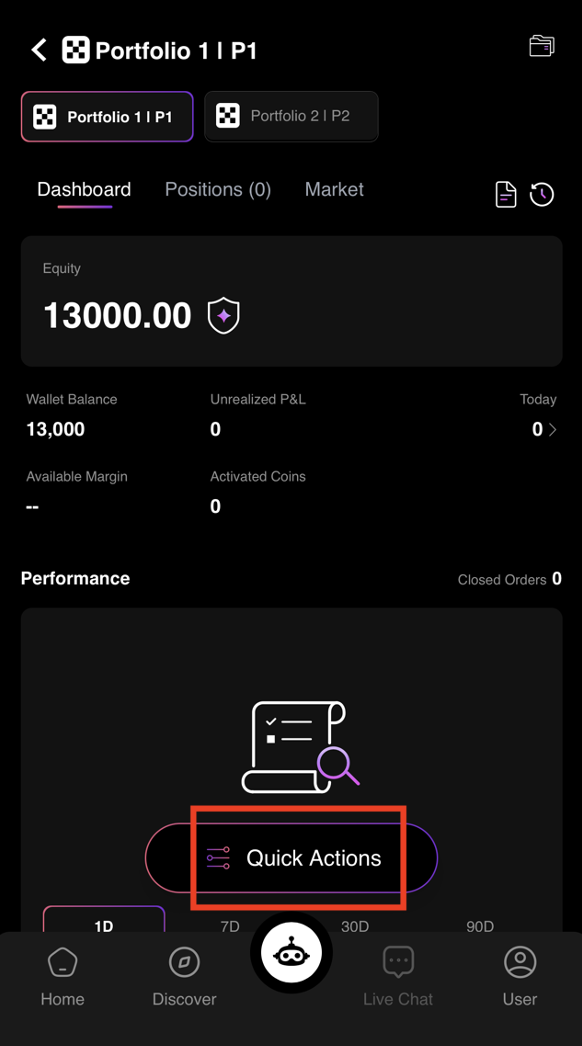
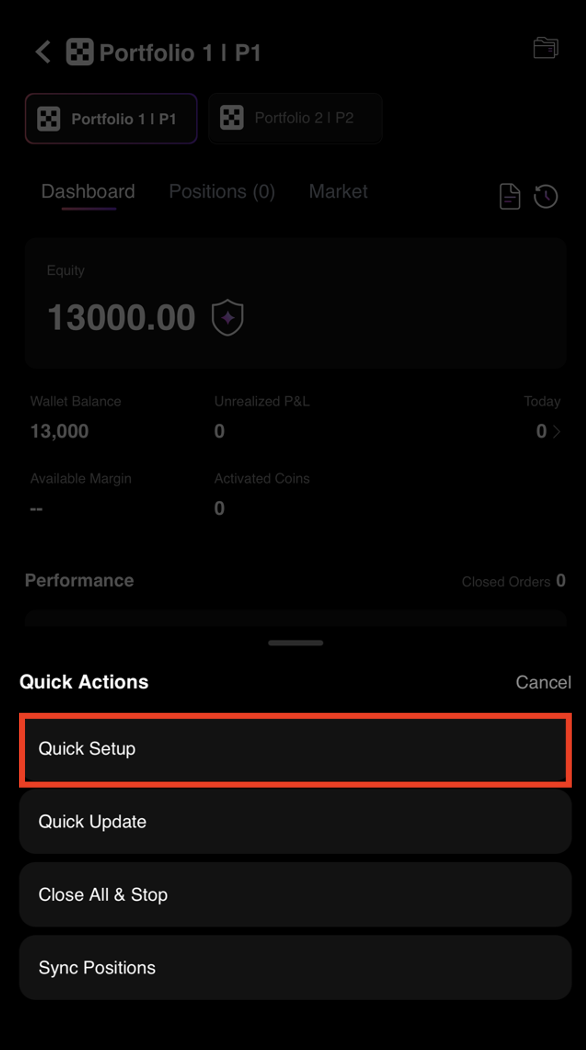
Step 4: Open Quick Actions
Tap Quick Actions to access the trading configuration options.
Step 5: Select Quick Setup
Tap Quick Setup to let the AI automatically generate an optimized trading configuration based on your wallet balance.
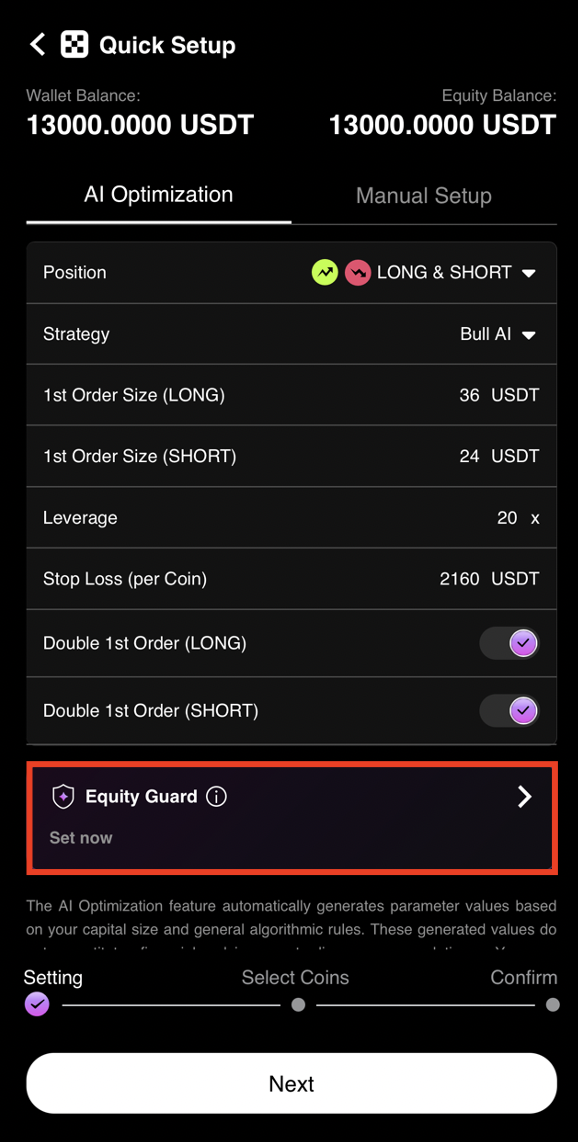
Equity Guard
Step 6: Configure Equity Guard
The AI reads your wallet balance and automatically generates the configuration. Tap Equity Guard to set your risk management parameters.
Step 7: Set Your Loss Limits
Configure your cut loss percentage or equity threshold based on your risk tolerance. For example, setting 30% on 13,000 USDT means all trades close automatically if equity drops to 9,100 USDT.
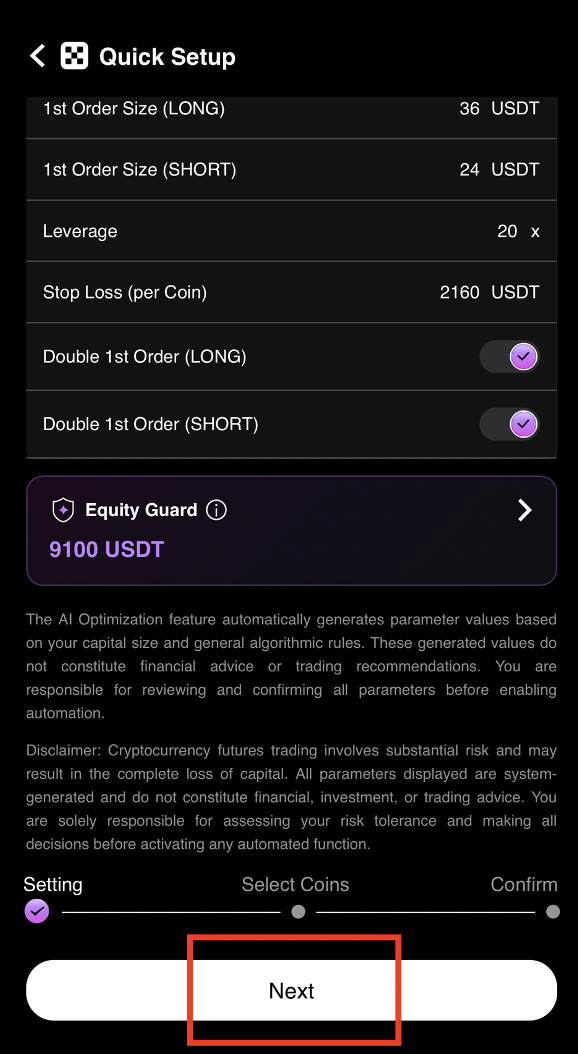
Step 8: Confirm Your Settings
Review your Equity Guard settings, then tap Next to proceed to coin selection.
Start Trading
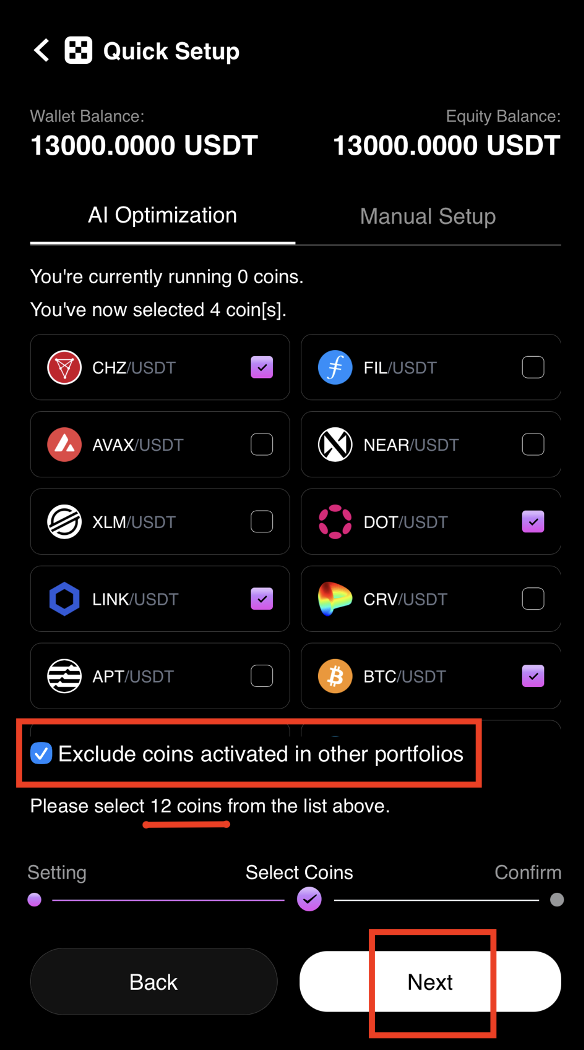
Step 9: Select Your Trading Coins
Filter the available coins and select the number of coins based on AI Optimization recommendations. Tap Next to continue.
Step 10: Activate AI Trading
Tap Start to activate your AI automated trading strategy. The bot will begin executing trades immediately.
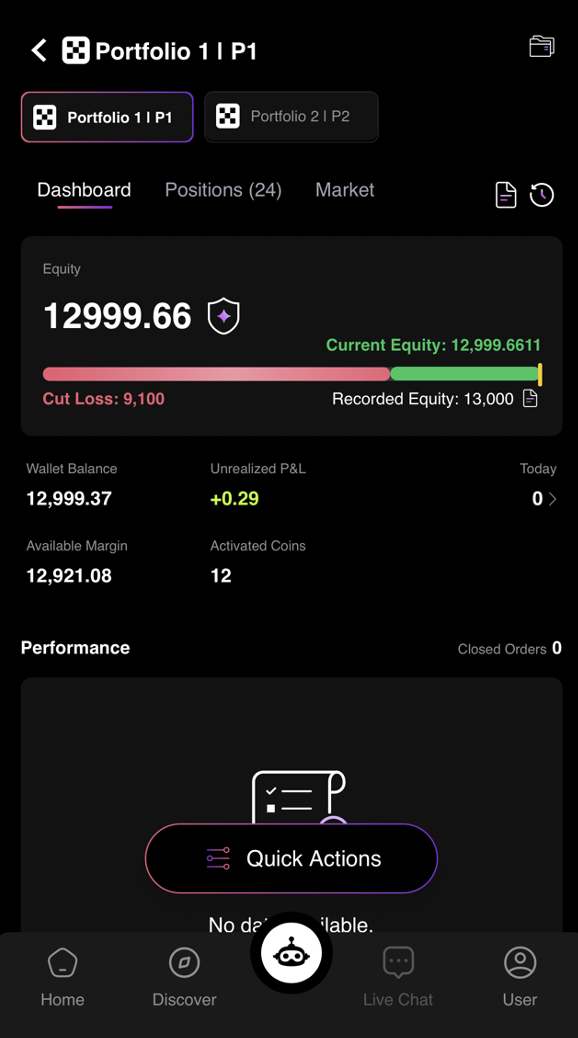
Step 11: Trading Successfully Activated
You have successfully activated automated AI trading on CoinTech2u with your Bybit exchange. Monitor your portfolio performance, profit/loss, and open positions from the dashboard at any time.
Complete Bybit Tutorial Series
You have completed the full Bybit setup guide. Here are all the tutorials in the series for quick reference:
Frequently Asked Questions
What is Equity Guard in CoinTech2u and how does it protect my funds?
Equity Guard is CoinTech2u's built-in risk management feature that automatically closes all trading positions when your portfolio value drops below a set threshold. For example, if you have 13,000 USDT and set Equity Guard at 30%, all trades close automatically when your equity reaches 9,100 USDT, preventing further losses and protecting your remaining capital.
What is Quick Setup and how does it configure my trading?
Quick Setup is CoinTech2u's one-tap AI configuration tool. It automatically reads your wallet balance and generates optimized trading parameters including position sizes, leverage levels, and coin selections. Quick Setup saves you from manually configuring complex trading settings — the AI handles everything based on your available capital and market conditions.
What is the minimum capital required to start AI trading on CoinTech2u?
We recommend starting with at least 1,000 USDT to diversify across multiple trading pairs and achieve stable, risk-adjusted returns. Higher capital allows the AI to trade more coins simultaneously for better diversification. The Quick Setup will automatically optimize your configuration based on your available balance.
Can I adjust my trading settings after activating the AI bot?
Yes, you can adjust your trading settings at any time through the CoinTech2u dashboard. You can modify your Equity Guard threshold, change the number of trading coins, update position sizes, or stop trading entirely. Changes take effect after current open positions are managed. You can also re-run Quick Setup to regenerate optimized configurations.
Start AI Trading on Bybit Today
Register CoinTech2u for free, connect your Bybit exchange, and let the AI generate profits for you 24/7.
Register CoinTech2u Free