Back to Blog List

How to Start AI Trading on CoinTech2u — Quick Setup Guide (OKX)

Tutorial
C
CoinTech2u
CoinTech2u Community Columnist
11-step guide to activate automated AI trading on CoinTech2u using Quick Setup. Configure Equity Guard risk management and select trading coins with AI optimization.
1

Select Portfolio

Step 1: Open the CoinTech2u Trading Section

On the CoinTech2u homepage, tap the CoinTech2u logo at the bottom of the screen to access your trading portfolios.
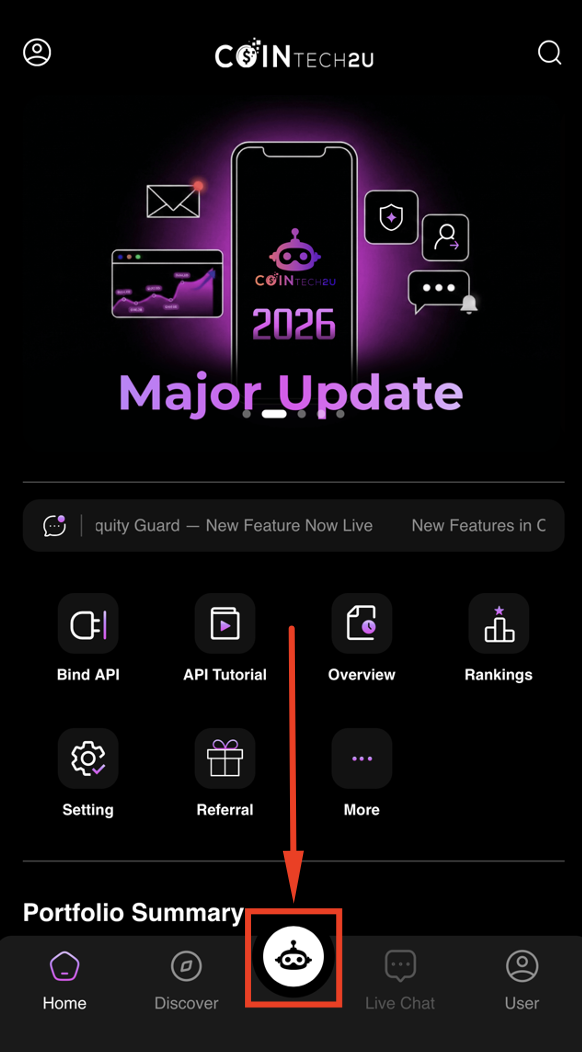
Tap CoinTech2u logo to access trading

Step 2: Tap "CoinTech2u"

Tap CoinTech2u to view your connected portfolios and trading options.
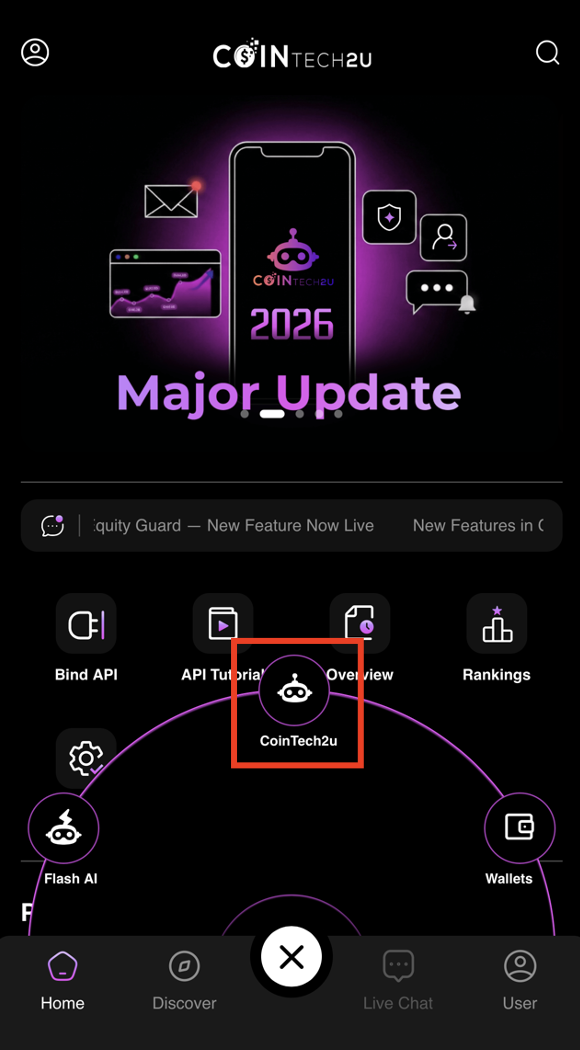
Select CoinTech2u trading section

Step 3: Select Your Portfolio

Tap the portfolio you want to start trading with. This is the portfolio connected to your OKX account via Fast API.
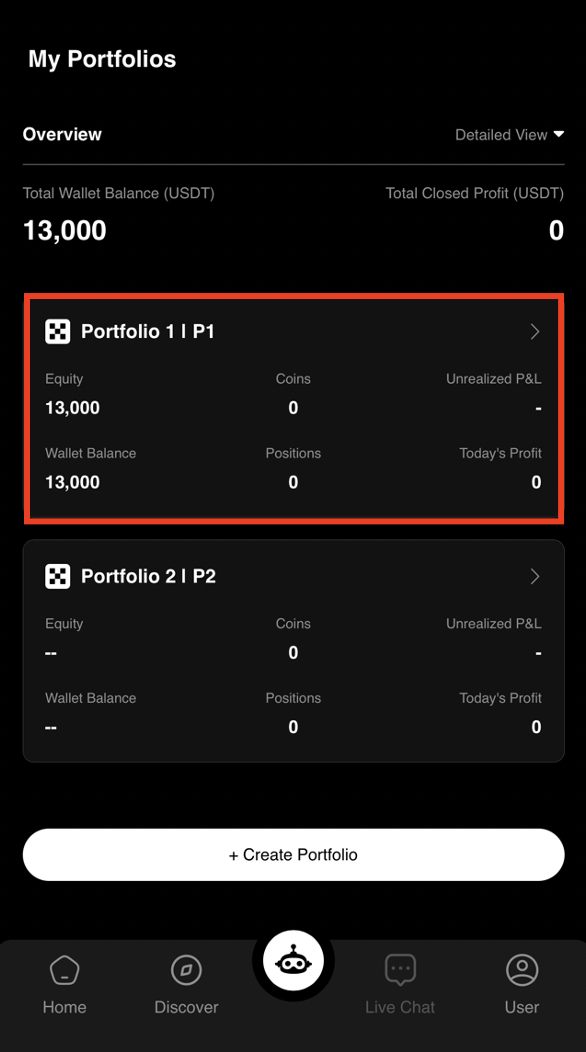
Select trading portfolio in CoinTech2u
2

Quick Setup & Equity Guard

Step 4: Tap "Quick Actions"

Tap Quick Actions to access the one-tap setup and configuration options for your trading bot.
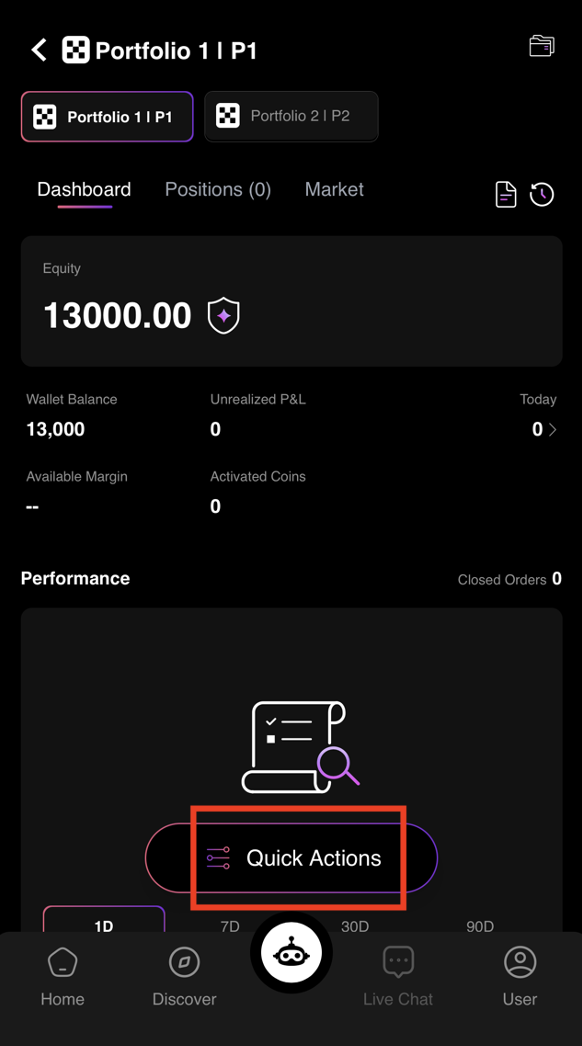
Tap Quick Actions in CoinTech2u portfolio

Step 5: Select "Quick Setup"

Tap Quick Setup to let the AI automatically read your wallet balance and generate optimized trading settings tailored to your account.
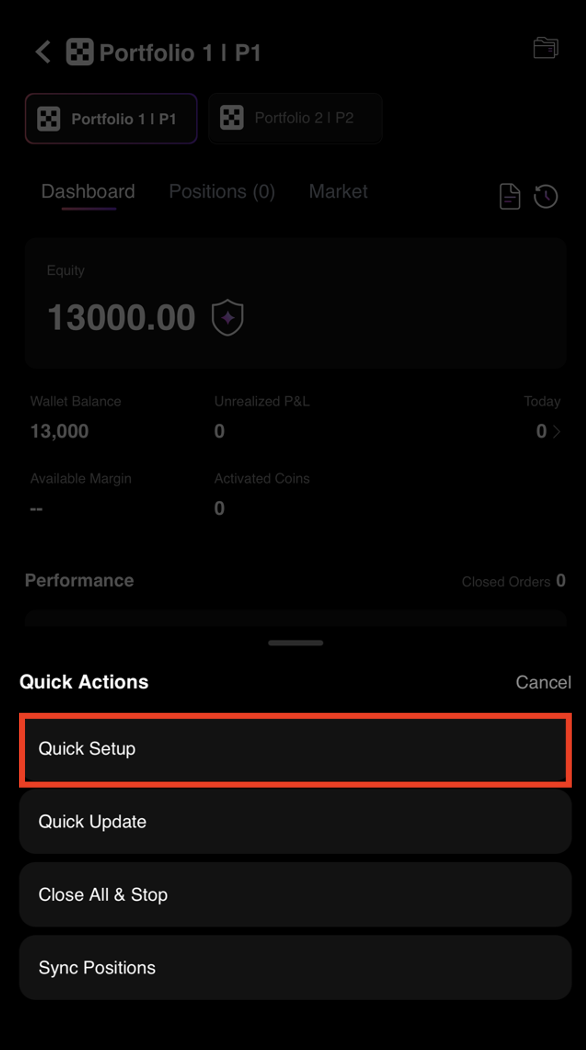
Select Quick Setup for AI trading configuration

Step 6: Review Config and Set Equity Guard

The AI will display the automatically generated configuration based on your wallet balance. Tap Equity Guard to configure your risk protection settings.
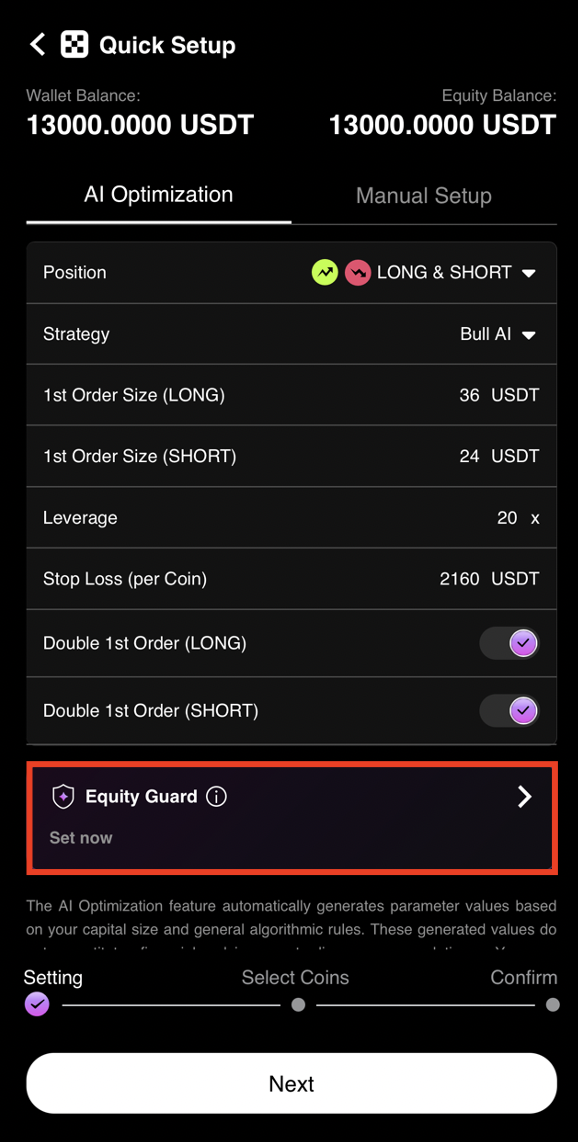
Review AI configuration and tap Equity Guard

Step 7: Set Your Loss Tolerance

Configure your maximum acceptable loss percentage. Equity Guard will automatically close all positions and stop trading if your portfolio drops below this threshold.

Example: 13,000 USDT with 30% tolerance = Equity Guard triggers at 9,100 USDT (closing all positions).
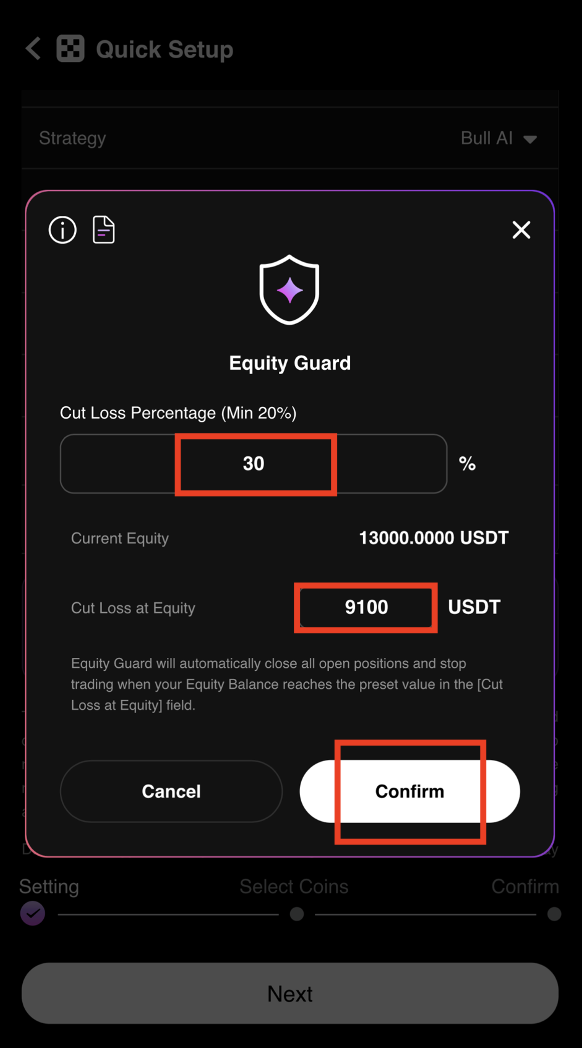
Set Equity Guard loss tolerance in CoinTech2u

Step 8: Confirm Equity Guard and Tap "Next"

After setting your Equity Guard parameters, tap Next to proceed to the coin selection step.
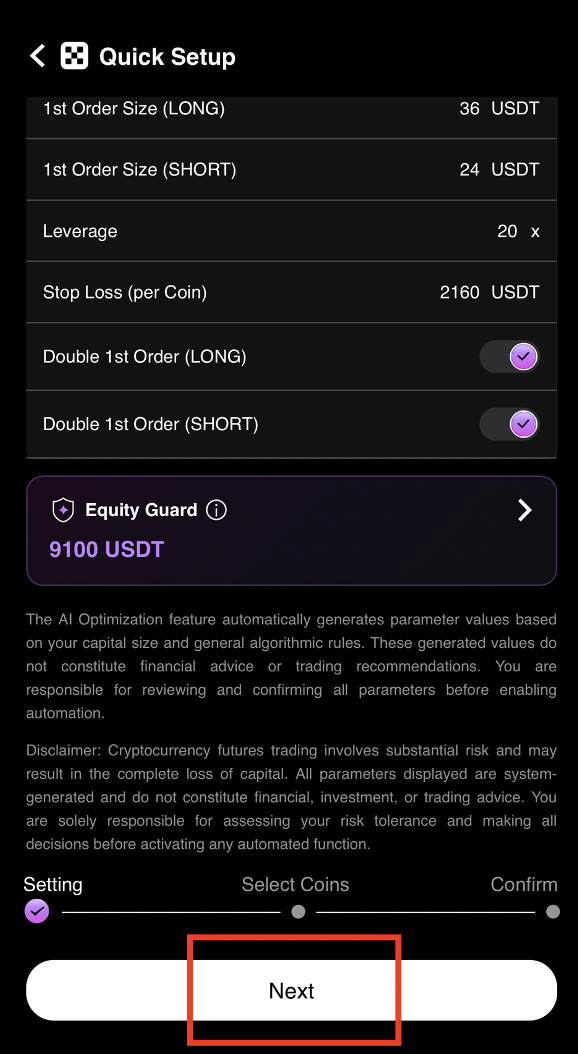
Confirm Equity Guard settings and tap Next
3

Start Trading

Step 9: Select Your Trading Coins

Filter and select the cryptocurrency pairs you want to trade. The AI provides optimization recommendations based on market conditions. Select the number of coins that matches your capital level for best performance.
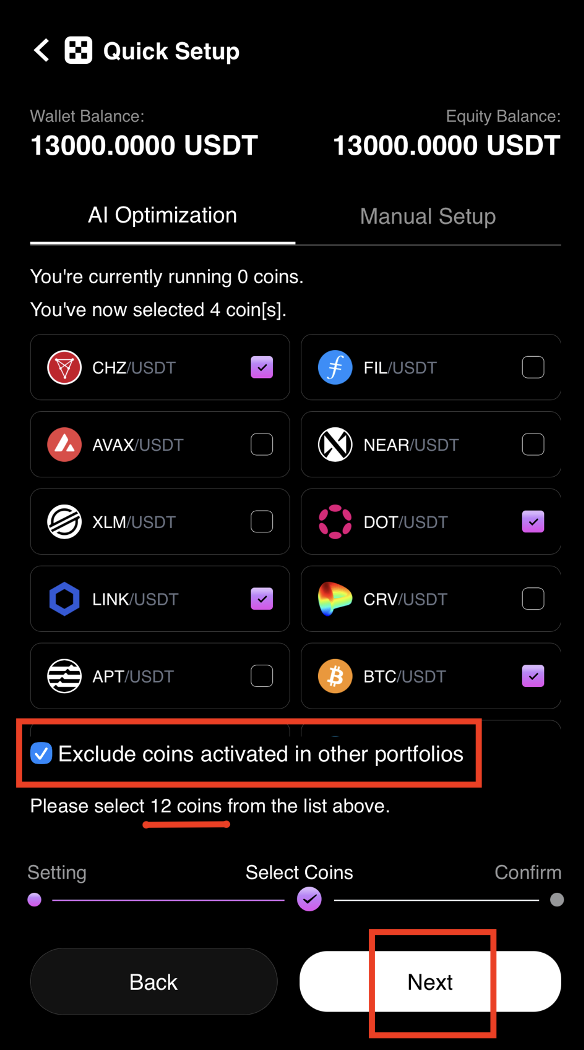
Select trading coins in CoinTech2u Quick Setup

Step 10: Click "Start"

Review your final configuration and tap Start to activate the AI trading bot. The bot will begin analyzing the market and executing trades automatically.
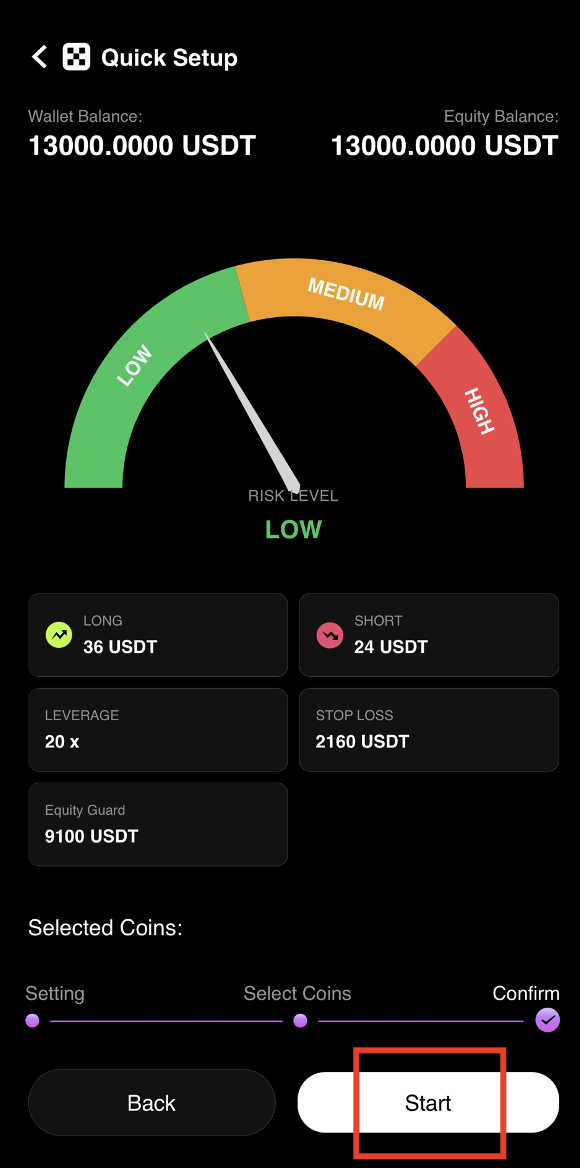
Click Start to activate AI trading on CoinTech2u

Step 11: AI Trading is Now Active!

Congratulations! You have successfully activated automated AI trading on CoinTech2u. The bot will trade 24/7, executing strategies based on real-time market analysis. Monitor your performance through the dashboard at any time.
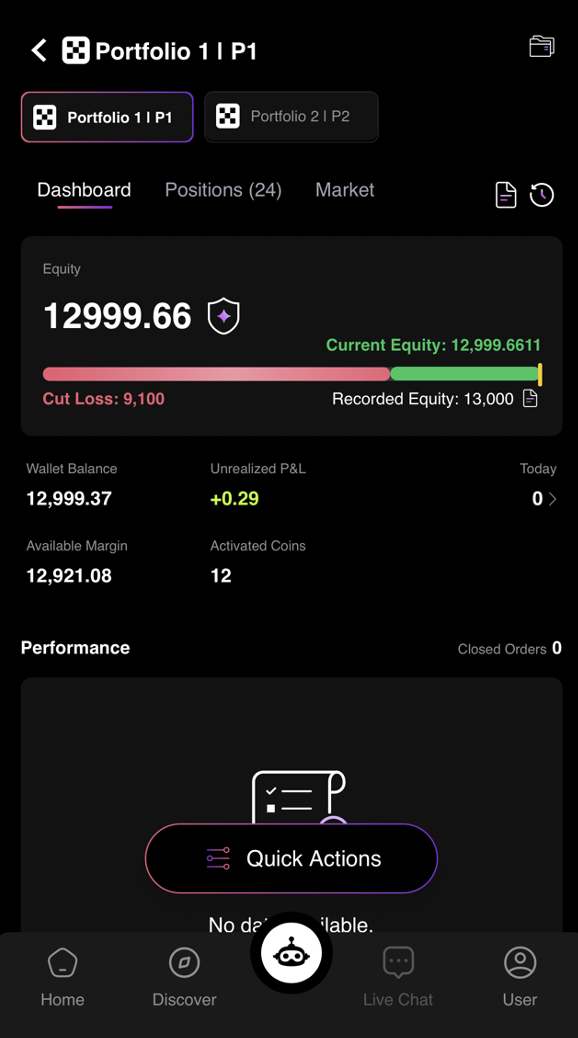
CoinTech2u AI trading successfully activated

Start Your AI Trading Journey Today

Join 50,000+ users who trust CoinTech2u's AI to trade crypto 24/7. Register for free and start in minutes.

Share this article:

Related Articles

Tutorial
How to Convert USDT to Gas Fee in CoinTech2u (via OKX)

17-step guide to deposit USDT from OKX to your CoinTech2u wallet via TRC20 network and convert it to...

CoinTech2u Read More →
Tutorial
How to Register an OKX Account and Complete KYC Verification

Step-by-step guide to register an OKX exchange account using the CoinTech2u referral link, complete ...

CoinTech2u Read More →
Tutorial
How to Start AI Trading on CoinTech2u — Quick Setup Guide (Bitget)

11-step guide to activate automated AI trading on CoinTech2u with your Bitget account. Configure Equ...

CoinTech2u Read More →
Tutorial
How to Start AI Trading on CoinTech2u — Quick Setup Guide (Bybit)

11-step guide to activate automated AI trading on CoinTech2u with your Bybit account. Configure Equi...

CoinTech2u Read More →
Tutorial
How to Start AI Trading on CoinTech2u — Quick Setup Guide (Binance)

11-step guide to activate automated AI trading on CoinTech2u with your Binance account. Configure Eq...

CoinTech2u Read More →
Tutorial
CoinTech2u Tutorial Guide — Complete Setup Tutorials for OKX, Bitget, Bybit & Binance

Complete tutorial hub with step-by-step guides for all 4 supported exchanges. From registration to a...

CoinTech2u Read More →
Tutorial
How to Transfer Funds to Your OKX Trading Wallet

Guide to transfer USDT from your OKX Funding Wallet to Trading Wallet for both main account and sub-...

CoinTech2u Read More →
Tutorial
How to Register a Bitget Account and Complete KYC Verification

15-step guide to register a Bitget exchange account with referral code ct2u10 for 10% fee rebate, co...

CoinTech2u Read More →
Tutorial
How to Bind OKX Fast API in CoinTech2u

Quick 8-step guide to connect your OKX account to CoinTech2u via Fast API. One-tap OAuth binding thr...

CoinTech2u Read More →
Tutorial
How to Switch to Futures Mode and Hedge Mode in OKX

8-step guide to switch your OKX account to Futures Mode and enable Hedge Mode, required settings bef...

CoinTech2u Read More →

This article is for educational and informational purposes only and does not constitute investment advice. Investing involves risks, please invest cautiously.

Start Free Trading →